
Classes and the calendar
Classes are the recurring sessions students attend. The Calendar shows classes, instructors and tasks on one grid. From the Calendar you can also launch the kiosk.
Creating a class
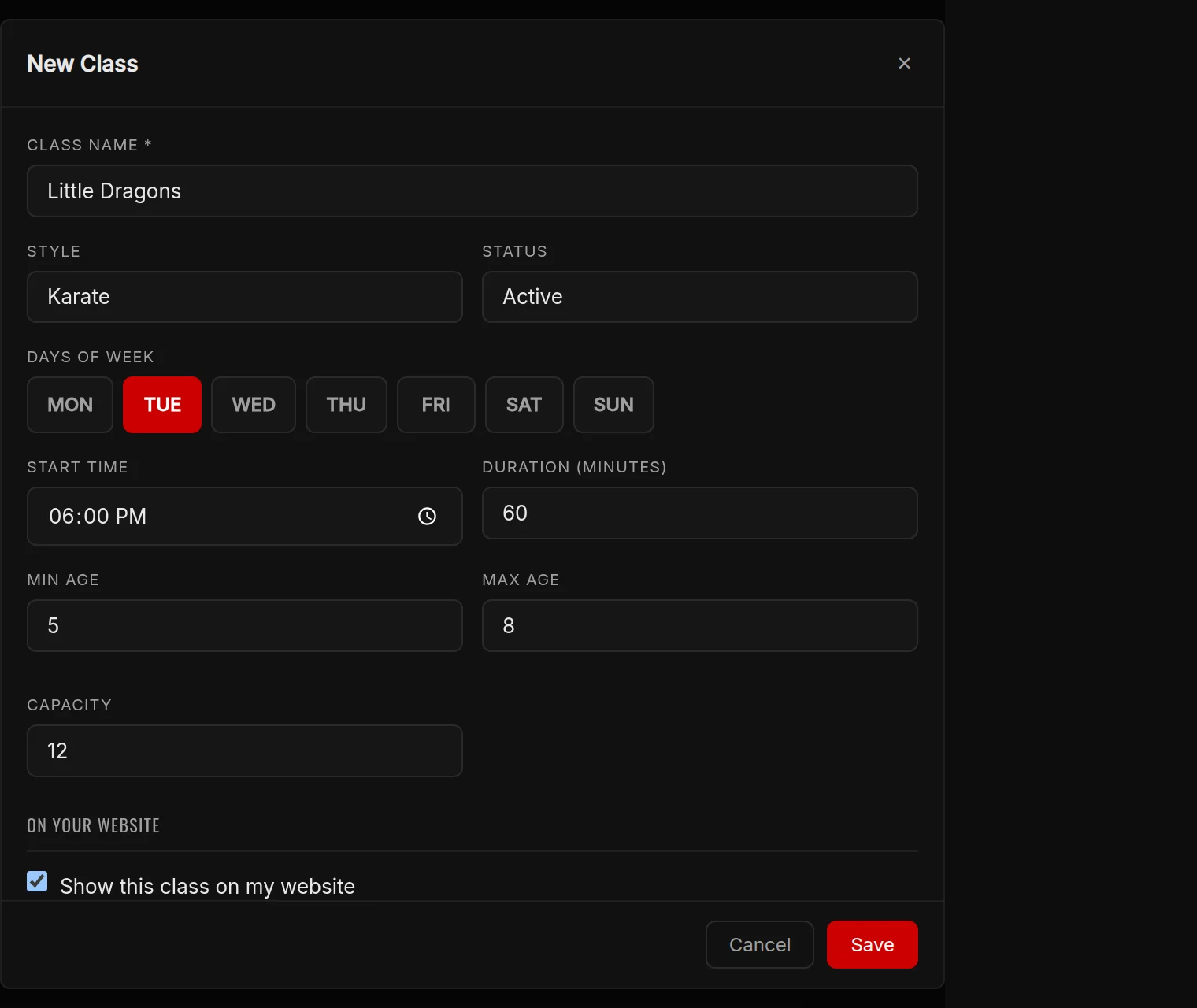
- Open Calendar and press Manage Classes.
- Press + New Class.
- Enter the Class Name, and pick a Style if the class belongs to one.
- Set the Days of Week, Start Time and Duration (minutes).
- Optional: set Min Age and Max Age, and a Capacity. Leave Capacity empty for no limit.
- Press Save.
Who can attend
How this class takes attendance has two choices. Open check-in (the default) lets any eligible student in. Registered students only limits the class to students on its roster. Included In lets you open the class to specific memberships or trials; leave every box clear to open it to everyone.
When a class is full, new students can join the online waitlist if you have switched on Offer the online waitlist when it is full.
Start and end dates
Session Window is optional. Fill in a start and end date to run a class for a single term; leave it empty for a standing class. An end date before the start date is rejected.
Inactive and deleted classes
Set a class to Inactive to stop it appearing at the kiosk and in the attendance class list, without losing anything. Its past attendance is kept.
Deleting a class removes the class and its roster. Its attendance history stays. The confirmation says it cannot be undone, so use Inactive if in doubt.